

Reports
Reports are the field worker's record of completed work. When a worker finishes an installation, repair, or inspection, they submit a report capturing what was done, which materials were used, where the work took place, and any photos or notes. Submitting a report automatically creates inventory consumption transactions and feeds into payment calculations — no separate paperwork required.
Where Reports Fit in the Hierarchy
Project
  └── Task  (planned unit of work)
        └── Work Order  (assignment to a worker)
              └── Report  ← you are here
A report links directly to a task — that is how task progress is measured. The link to a work order is optional: it provides the assignment context (who was sent, what materials were authorized) but is not required. This means:
- A report against a task always advances the task's (and therefore the project's) progress
- A report linked to a work order also advances the work order's progress
- A report with no work order is valid — for example, when a worker does ad-hoc or emergency work outside of a formal assignment
- A work order with no linked task is also valid, but reports against it only advance the work order's progress (not any task, since there is none)
Report Structure
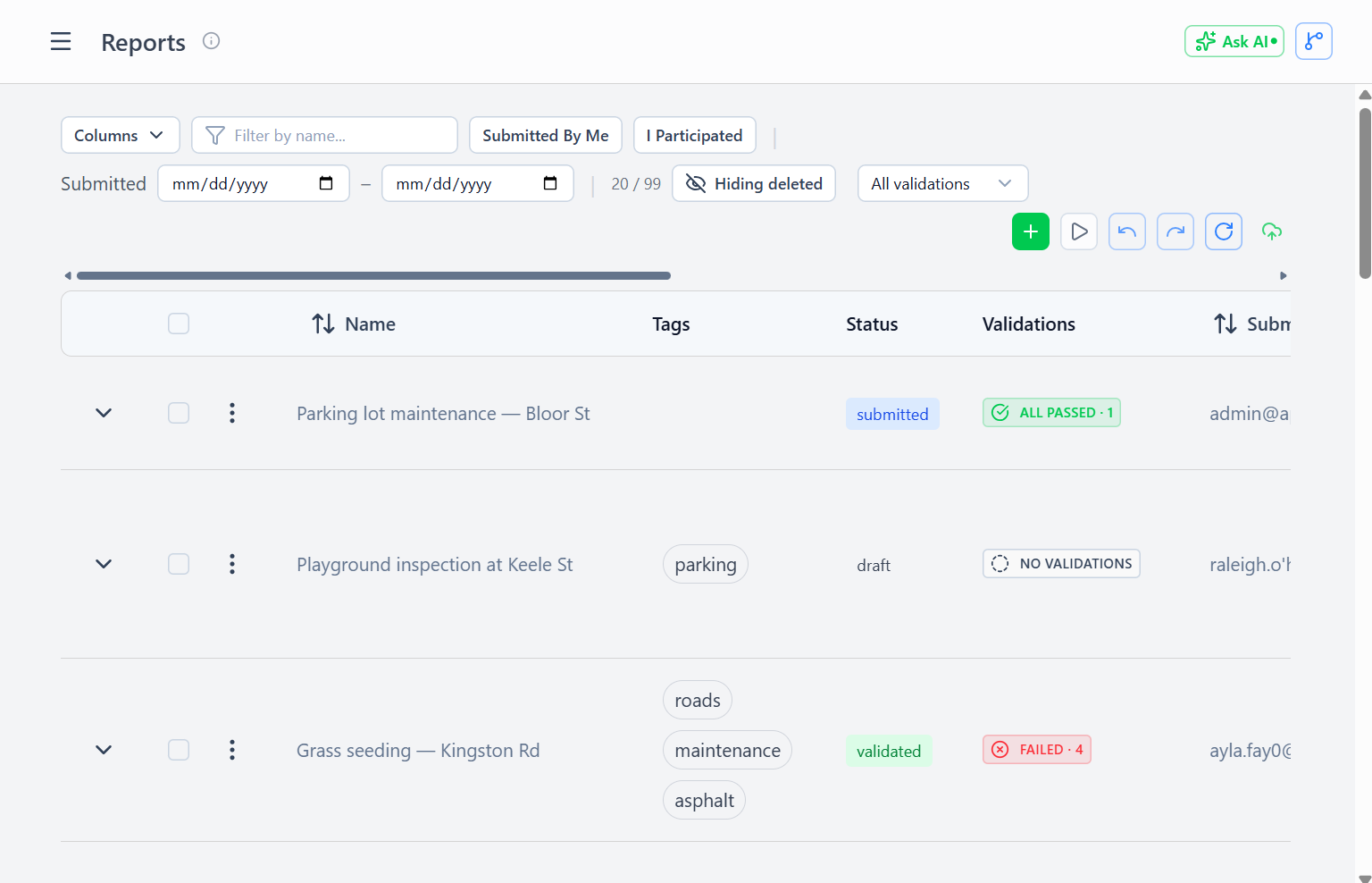 Reports page showing field execution records with consumption and status
Core Fields:
- Name — Report title or summary
- Description — Detailed notes, observations, issues encountered
- Reported By — User who submitted the report
- Report Date — When work was performed
- Work Order — Optional link to a parent work order
- Geometry — Location where work was performed (point, line, or polygon)
Work Documentation:
- Work Completed — Array of resources consumed and tasks finished
- Consumed From — Which stock items were depleted (triggers transactions)
Media:
- Attachments — Photos, documents, diagrams, certifications
Report Status
| Status | Meaning |
|---|---|
draft | Report in progress, not yet submitted |
submitted | Report submitted by the worker, awaiting QC |
validated | QC validation passed — payment released |
rejected | Validation failed — rework required |
Status transitions are driven by the validation workflow. See Validations for the full walkthrough.
Work Completed Structure
Each entry in the Work Completed list documents one type of work performed:
| Field | Description |
|---|---|
| Resource | What was done (e.g., Cat6 Cable, Junction Boxes, Electrician) |
| Volume | How much was completed (e.g., 45, 8, 3.5) |
| Unit of Measure | The unit for the volume (e.g., meters, units, hours) |
| Task | Optional — which task this work contributes to |
Example: A worker reports installing 45 m of Cat6 Cable, 8 Junction Boxes, and 3.5 hours of electrician labour, all against the same task.
The Task field on each work completed entry determines which task's progress advances. A single report can reference multiple tasks (e.g., one report covering work done at two locations in the same day).
Ad-Hoc Reports (No Formal Task)
The Task field on each work completed entry is optional — this supports unplanned work:
Use Cases:
- Emergency repairs (broken equipment, accidents)
- Customer service calls (unplanned site visits)
- Maintenance discovered during other work
- Exploratory work (surveys, assessments)
Example:
Report: "Emergency fiber repair - storm damage"
Work Completed: [
  { resource: "Fiber Cable", volume: 20, uom: "meters" }
  // No task linked - this was unplanned emergency work
]
Consumed From: [
  { stockItemId: truck_fiber_id, resource: "Fiber Cable", volume: 20, uom: "meters" }
]
The system still creates consumption transactions, tracks material costs, and calculates payment — even without a formal task or work order.
Consumed From (Automatic Transactions)
The Consumed From list triggers automatic inventory deduction when the report is submitted:
| Field | Description |
|---|---|
| Stock Item | Which stock item to deduct from (e.g., your truck's cable stock) |
| Resource | What resource was consumed |
| Volume | How much was used |
| Unit of Measure | The unit for the volume |
Workflow:
- Worker submits report with Consumed From entries
- System validates stock availability at each stock item
- Consumption transactions created automatically
- Transactions linked to this report
- Stock item balances reduced
- If insufficient stock → report rejected or worker prompted for partial
Example:
Consumed From: [
  { stockItemId: johns_truck_cable, resource: "Cat6 Cable",    volume: 45, uom: "meters" },
  { stockItemId: johns_truck_boxes, resource: "Junction Boxes", volume: 8,  uom: "units" }
]

Result:
  - 2 consumption transactions created
  - John's truck inventory reduced by 45m cable, 8 boxes
  - Transactions linked to this report
  - Payment calculation has reliable consumption data
Benefits:
- Stock always accurate (can't report work without recording consumption)
- Transaction audit trail automatic
- Prevents "ghost consumption" (report without stock change)
- Payment based on actual materials used
Report Validation
When a report is submitted, the system validates:
Stock Availability:
- Each consumed-from entry is checked
- If a stock item has insufficient volume → options:
- Reject entire report (error message)
- Prompt for partial consumption (reduce reported volume)
- Allow negative balance (with warning — requires adjustment transaction later)
Work-Consumption Match:
- Warning if consumption totals don't align with work completed volumes
- Doesn't block submission (worker might have used personal materials)
- Flags for validation review
Geometry Validation:
- Points must have valid coordinates
- Lines must have at least 2 points
- Polygons must close (first point = last point)
Creating Reports
Access Required: reportsCreate admin right (or self-reporting permission)
Workflow:
- Navigate to Fulfillment → Reports
- Click Add Report
- Fill basic info (name, description, date)
- Optionally link to a work order (for assignment context and progress tracking)
- Add work completed entries:
- Select resource
- Enter volume completed
- Link to a task (optional but recommended for progress tracking)
- Add consumed from entries:
- Select stock item (usually the worker's personal site or truck)
- Select resource
- Enter volume consumed
- Set geometry (where work was performed)
- Upload photos and attachments
- Submit → consumption transactions created automatically
Quick Report from Work Order: Pre-filled form from the work order detail view:
- Work order and assigned-to auto-populated
- Task pre-populated from the work order's linked task
- Suggested consumption based on resource targets
- Worker adjusts actuals and submits
Mobile Report Creation: Simplified mobile interface:
- Camera integration for photos
- GPS auto-capture for geometry
- Voice-to-text for descriptions
- Minimal required fields
Report Progress Contribution
Reports update both task and work order progress:
Task Progress:
- Sum all work completed entries that reference this task (across all reports)
- Divide by task resource requirements
- Cap at 100% per resource
Work Order Progress:
- Sum all work completed from reports that reference this work order
- Divide by the work order's resource targets
- Cap at 100% per resource
- Calculate average across all targets
Over-Delivery: Workers can report more than was assigned:
- Contributes to task progress (helps complete the task faster)
- Work order progress is capped at 100% (worker exceeded targets)
- Validation reviews over-delivery to verify accuracy
Validation Badges on the Reports List
Validations are surfaced directly on the reports page as traffic-light badges — you do not navigate to a separate validations page. Each report row has:
- An aggregate validation badge in its own column, showing the most-severe status with a count (e.g.
FAILED · 3). Hover for a per-status breakdown. - A status-grouped badge row inside the expanded report, with one badge per validation.
Clicking any badge opens the ValidationEditModal — a full overlay for viewing, editing, or creating a validation without leaving the report. The Submit button in the modal commits report and validation edits together atomically.
See Validations for the full walkthrough.
Filtering Reports
Pre-Built Filters:
- Reported by me — Your submitted reports
- Needs validation — Reports without any validation (grey badge)
- Recent — Last 7 days
Validation Status Filter: The reports list accepts a validation status filter:
all— every report (default)none— reports without any validationany— reports with at least one validationfailed— reports with at least one failed validationrevision— reports with at least one needs-revision validationpassed— reports where all validations pass
Custom Filters:
- Date range
- Reported by specific user
- Linked work order
- Task reference
Best Practices
Accurate Consumption Reporting:
- Report actual materials used (not estimated)
- Use stock items from your personal site (proves you had the materials)
- Document over-consumption (explain why more materials were needed)
Timely Submission:
- Submit reports the same day as the work performed
- GPS and timestamps provide accountability
- Fresh memory = more accurate details
Photo Documentation:
- Before photos (site condition)
- During photos (work in progress)
- After photos (completed installation)
- Issues photos (damage, obstacles, non-standard conditions)
Detailed Descriptions:
- Note any deviations from task requirements
- Document reasons for over or under-consumption
- Record issues for future reference (locked gates, missing permits, weather)
Link to Tasks When Possible:
- Helps track task and project progress
- Enables spatial analysis (where work is concentrated)
- Improves future task estimation
Respond to Validation Comments:
- Review validation comments promptly
- Reply in the comment thread with clarification or confirmation of corrections
- Correct errors in future reports
- Learn from quality feedback
Report Immutability
Soft Deletes: Reports can be marked deleted but stay in the database:
- Preserves transaction history (consumption transactions remain)
- Maintains payment audit trail
viewDeletedadmin right to see deleted reports
Edit Restrictions: After a validation is performed:
- Reports become read-only
- Corrections require a new report with notes
- Preserves QC integrity
Audit Trail:
- Every report edit logged (who, when, what changed)
- Consumption transactions never edited (immutable)
- Payment calculations traceable to original report data