

Work Orders
Work orders are how planned tasks get turned into field assignments. Each work order links a specific task to a worker or team, tells them what materials to collect, and generates a QR pickup code they scan at the warehouse to receive authorized inventory. Work orders operate in real time — workers see new assignments immediately, and progress updates as reports are submitted.
Work orders can also be standalone — created without linking to a task when the work is ad-hoc or when formal task planning has not been done yet.
Where Work Orders Fit in the Hierarchy
Project
  └── Task  (planned unit of work — geometry, resource requirements)
        └── Work Order  (assignment of a task to a worker or team)
              └── Report  (worker's record of what was actually done)
- A project groups related tasks for campaign-level tracking
- A task is the unit of planned work — it carries the geometry, resource requirements, and tracks overall progress
- A work order assigns that task to people, specifies materials to collect, and drives the field execution
- A report records what was done; it links to the task for progress and optionally references the work order
A task can have multiple work orders (splitting work across crews). A work order can exist without a task for unplanned or ad-hoc field work.
Work Order Structure
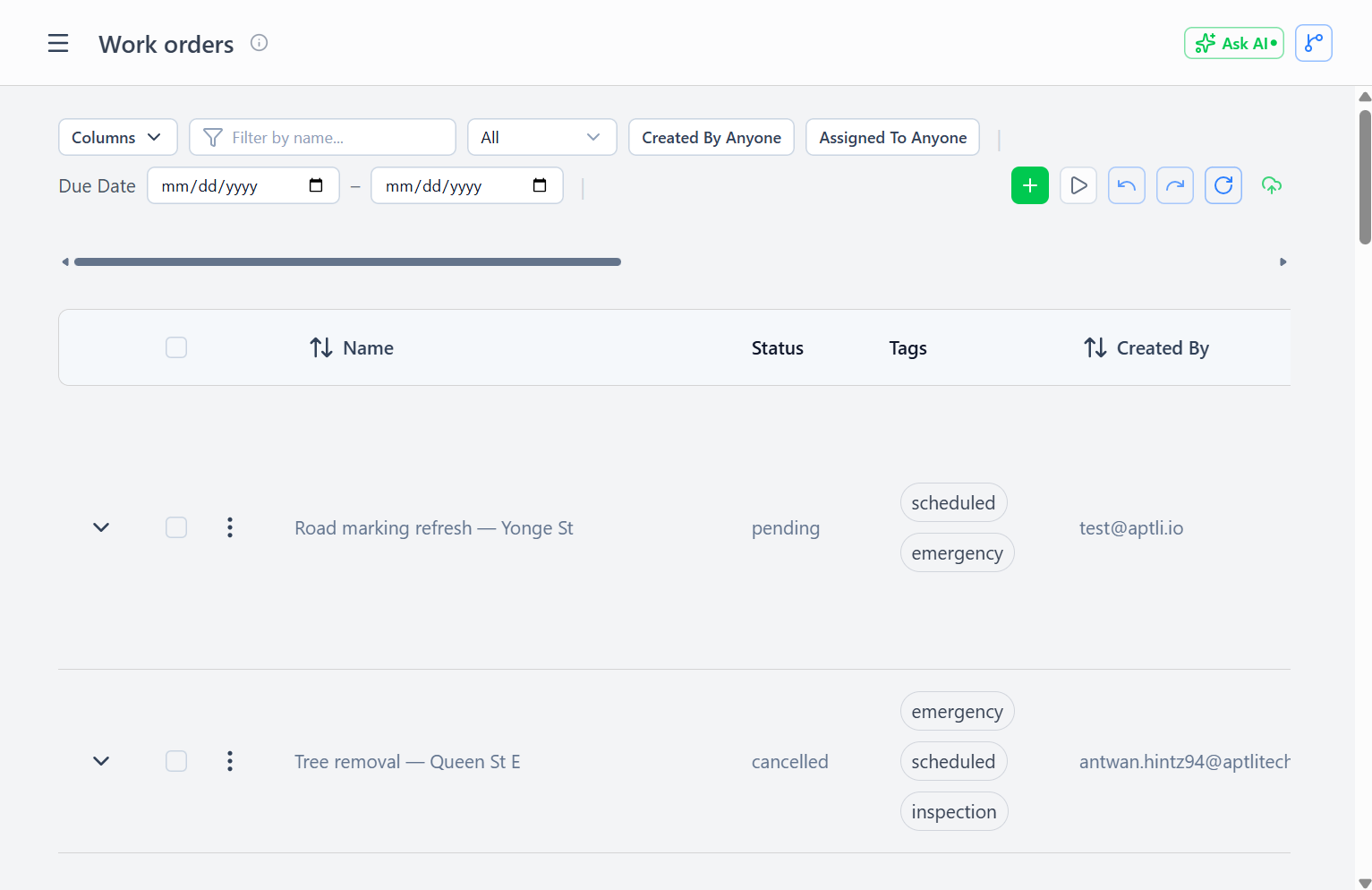
Tip: bulk actions (delete, restore, selected-add) and version controls (Undo, Redo, Resync, Submit) live in the upper-right of the filter row at the top of the page. Select one or more rows to reveal the bulk-action buttons alongside the Add button.
Core Work Order Fields:
- Name — Descriptive work order name
- Description — Work instructions or context
- Assigned To — Array of users (supports team assignments)
- Status — pending, in-progress, completed, cancelled
- Created By — User who created the assignment
- Due Date — Target completion date
Work Definition:
- Task — The single task this work order is executing (optional — can be left blank for standalone assignments)
- Resource Targets — Materials and labour goals for this assignment (not hard reservations)
- Graduates To — Optional layer the task's map feature moves to when this work order completes (see Task Graduation)
Inventory Management:
- Planned Stock — Expected inventory demand (soft planning, no locks)
- Pickup Code — Authorization code for QR-based inventory transfer
- Pickup Code Expires — When the authorization expires
- Pickup Remaining — What's left to collect after partial pickups
Real-Time Operation
Work orders bypass the version/commit workflow:
Why Real-Time:
- Workers need immediate answer: "Do I have this work?"
- Payment calculation requires committed assignment data
- No value in offline drafting (assignments are execution, not planning)
- Stock visibility must be current for QR pickup validation
Task — One Task Per Work Order
Each work order links to exactly one task. The task provides the geometry (where the work is), the resource requirements (what's needed), and the progress baseline.
Selecting a task in the work order form also enables the Graduates To layer picker — once a task is selected, the layer list is filtered to layers whose geometry type matches the task.
Standalone work orders (no task linked) are fully supported. Use them when:
- Work is ad-hoc or reactive (emergency repair, unexpected discovery on site)
- A formal task hasn't been planned yet but field work needs to proceed
- The assignment is purely logistical (e.g., deliver materials, no site geometry needed)
Progress tracking for standalone work orders is based on resource targets only — there is no task to update.
Resource Targets (Not Reservations)
Resource Targets define work goals, not inventory locks:
Example:
Work order to John:
  Resource Targets: [
    { resource: "Cat6 Cable", volume: 50, uom: "meters" },
    { resource: "Junction Boxes", volume: 10, uom: "units" }
  ]
Key Points:
- Does NOT reserve 50 m cable from inventory
- Other workers can still pick up the same materials
- Inventory is allocated at QR scan time (first-come, first-served)
- Allows flexibility when priorities change mid-day
Planned Stock (Optional): Forecast demand without locking stock:
Planned Stock: [
  { stockItemId: warehouse_cable_id, resource: "Cat6 Cable", volume: 50, uom: "meters" }
]
Helps warehouse staff see total expected demand, prepare materials for pickup, and warn early if stock is insufficient.
QR Pickup Codes
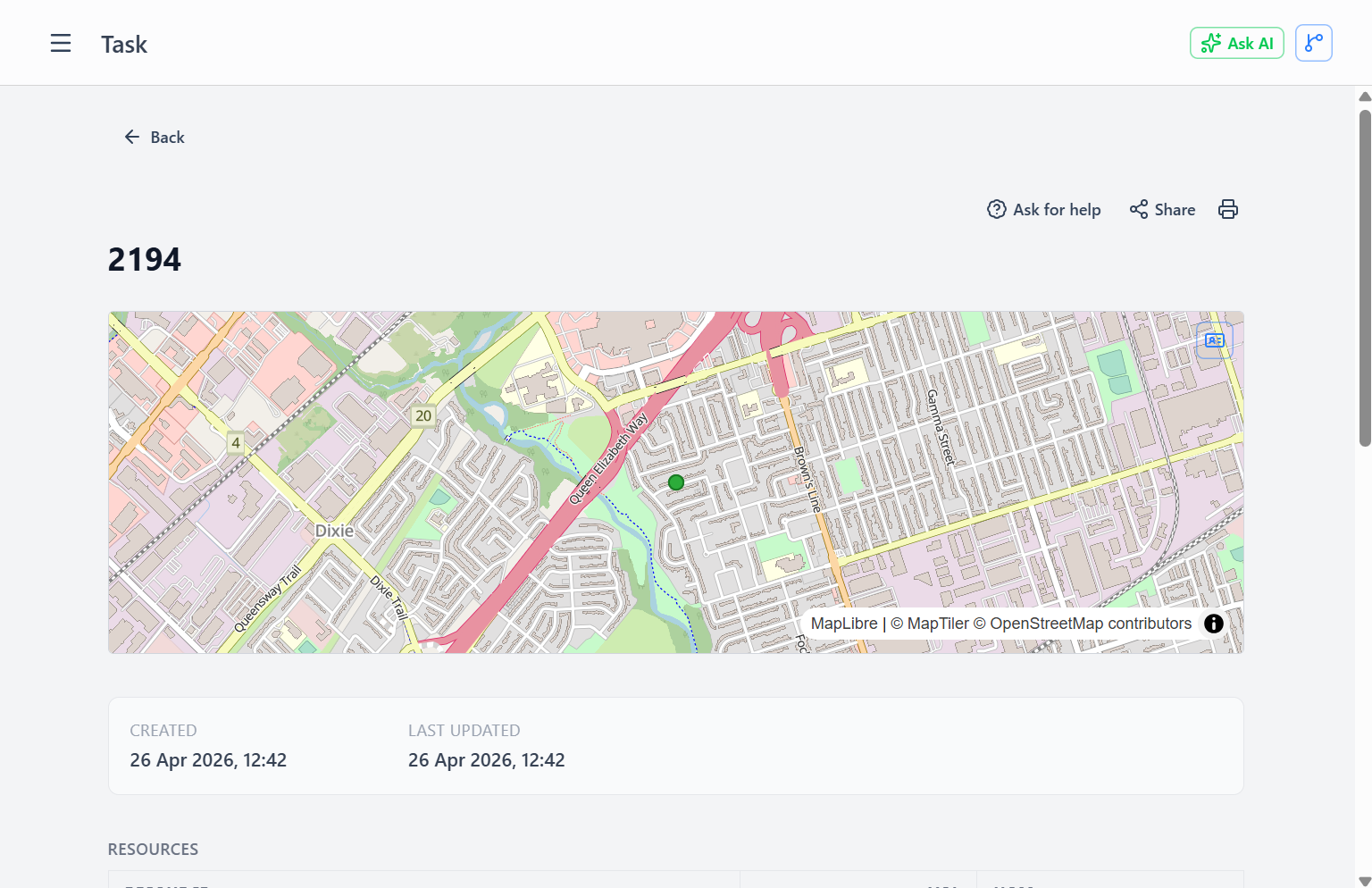
Note: the QR code displays at the top of the detail pane (above the resource targets) so it's immediately visible when you open the assignment.
Work orders can generate a QR pickup code that authorizes the worker to collect materials from a warehouse.
Generation:
- Create a work order with resource targets
- Generate a pickup code — the system issues a signed authorization containing:
- Authorized user IDs
- Resource targets (what can be picked up)
- Expiration timestamp
QR Display:
- Only shown to users in the Assigned To list
- Non-assigned users do not see the QR code
- Shows expiration date if a pickup expiry is set
Two-Step Pickup Flow
QR pickup uses a two-step handshake — authorization and completion are separate. Stock does not move until the second step.
Worker arrives at warehouse with QR
          ↓
[Facilitator scans QR]
          ↓
Step 1 — Authorize:
  Validates JWT signature and expiry
  Confirms facilitator has canFacilitatePickups
    (or worker is self-serving)
  Sets pickup status → "authorized"
  No stock movement yet
          ↓
Step 2 — Complete:
  Worker confirms volume (adjustable for partial pickup)
  Facilitator completes the pickup
  Stock deducted from warehouse
  Pickup status → "partial" or "completed"
  Transaction recorded with GPS + scan method
Decline: At step 1 the facilitator can decline instead of authorizing. The pickup status resets to pending and the code remains live — the worker can try again at another location or time.
Partial Pickups:
Authorized for: 100 units
Only 60 available → worker takes 60
pickupRemaining updated: 40 units still outstanding
Code remains live at "partial" — scannable at a restocked warehouse
Full consumption nullifies the code
Bulk Scanner Mode: Warehouse staff using a dedicated bulk scanner can skip the two-step for speed — the scanner goes straight to a single-step complete. This is for high-volume warehouse environments where a guarded handoff is not needed.
Staff-Assisted Pickups:
Warehouse staff with canFacilitatePickups permission:
- Scan the QR on behalf of an authorized worker
- Transaction records who performed the scan and on whose behalf
- Enables an unattended warehouse model
Work Order Status
Work order lifecycle:

pending → in-progress → completed
   ↓           ↓            ↓
Created    First Report   All Targets Met
   ↓        Submitted     or Manual Update
   └──────→ cancelled (work redirected/postponed)
pending — Created, not yet started
in-progress — Work underway (at least one report submitted, or worker manually updated)
completed — All work finished; triggers the graduation hook if a Graduates To layer is set
cancelled — Work redirected or postponed; preserved in history (soft-delete option available)
Progress Calculation
Work order progress is based on resource targets, not the task's requirements directly:
Formula:
For each resource target:
  Sum all completed work from reports referencing this work order
  Divide by target volume
  Cap at 100% per resource

Overall = Average across all resource targets
Example:
Resource Targets:
  - 50m cable
  - 10 junction boxes

Reports submitted:
  - Report A: 30m cable, 6 junction boxes
  - Report B: 25m cable, 5 junction boxes

Progress:
  Cable: (30 + 25) / 50 = 110% → capped at 100%
  Boxes: (6 + 5) / 10 = 110% → capped at 100%
  Overall: (100% + 100%) / 2 = 100%
Visual Indicators: Progress bar — Green ≥ 100%, Yellow ≥ 50%, Red < 50%
Creating Work Orders
Access Required: assignmentsCreate admin right
Workflow:
- Navigate to Fulfillment → Work Orders
- Click Add Work Order
- Fill basic info (name, description)
- Drag users into the Assigned To field (supports drag-and-drop from the Users page)
- Set the due date
- Link a Task if this is a planned assignment (search or drag from the Tasks page)
- Set Graduates To layer if the task should advance on the map when this work order completes
- Add Resource Targets (what the worker should accomplish)
- Optionally add Planned Stock (forecast demand)
- Generate a pickup code if protected inventory pickup is needed
- Save (immediately visible to assigned workers)
Drag-and-Drop Support:
- Drag users from the Users page → Assigned To field
- Drag tasks from the Tasks page → Task field
- Works across browser tabs (multi-monitor setup)
Filtering Work Orders
Pre-Built Filters:
- Created by me — Work orders you created
- Assigned to me — Your work assignments
- My resource assignments — Work orders whose linked task has a resource line assigned to you
Custom Filters:
- Status (pending, in-progress, completed, cancelled)
- Date range (due date)
- Assigned to specific user
- Contains a specific task
Work Order Detail View
Information Shown:
- Basic details (name, description, status)
- Assigned users
- Linked task (if set)
- Graduates To layer (if set)
- Dispatch location map
- Resource targets list
- Planned stock list
- Progress bar and percentage
- QR code (if you are assigned and a pickup code exists)
- Pickup remaining (after partial pickups)
- Reports submitted for this work order
- Transaction history (pickups performed)
Actions Available:
- Update status
- Edit timeline
- Change linked task
- Regenerate pickup code (if expired)
- Create new report (quick action from the work order)
- Export PDF — download a printable summary of the work order
Creating Reports from Work Orders
Quick workflow to report work done against this assignment:
- Open the work order detail view
- Click Create Report
- Pre-filled report form appears:
- Assigned to: same as the work order
- Task: auto-populated from the work order's linked task
- Suggested consumption: based on resource targets
- Worker adjusts actuals (what was really done)
- Submit report
- Consumption transactions created automatically
- Work order progress updated
Notifications
Batch notifications prevent spam:
Smart Batching:
- 10+ assignment changes in one hour → single summary notification
- Individual notification for each high-priority change
Notification Content:
- New assignments created for you
- Status changes on your assignments
- Approaching due dates
- Pickup codes expiring soon
Authorship and Edit Permissions
Work orders are author-gated: only the user who created the work order and administrators with adminRightsModify can edit or delete it. A user with the plain workOrdersUpdate right can view and filter work orders but cannot modify a work order they did not create.
This applies to all writes on the record — editing fields, changing status, and restoring a soft-deleted work order. If you need to modify a work order created by someone else, ask an admin or the original creator.
Task Graduation
When a work order is completed, it can optionally graduate its linked task to a map layer — placing the finished work visibly on the shared GIS dataset.
How Graduation Works
Set the Graduates To layer in the work order create or edit form. When the work order status is set to completed:
- If the task has no existing map feature → a new feature is created in the target layer, copying the task's geometry and mapped properties. A
sourceTaskIdreference is stamped on the feature. - If the task already has a map feature → it is moved to the target layer (same feature ID, new layer).
The task is never archived at graduation — it stays as the permanent work record with all materials, labour, and history. The map feature is the visual projection of the task's current state.
Multi-Stage Progression
A single task can have multiple work orders, each graduating to a different layer. This models multi-stage construction or inspection workflows:
| Work Order | Graduates To Layer | Meaning |
|---|---|---|
| WO-1 (Survey) | pending-installation | Feature placed, work pending |
| WO-2 (Install) | installed | Physical installation complete |
| WO-3 (Inspect) | inspected-and-accepted | Sign-off and acceptance done |
Each work order completion advances the task's map presence without any schema changes between stages.
Graduation Log
The task detail view shows a Graduation Log on the Location tab — a timeline of which work order triggered each layer move, with timestamps. Use this to audit the progression of a field installation from planning through acceptance.
Best Practices
Link to a Task Whenever Possible:
- Task linkage enables proper progress tracking, graduation, and spatial filtering
- Use standalone work orders only for truly ad-hoc work where a task would add no value
Set Realistic Timelines:
- Consider travel time and material pickup delays
- Pad for weather, traffic, locked sites
Use Pickup Codes for Protected Inventory:
- High-value equipment
- Controlled materials requiring accountability
- Items with regulatory tracking requirements
Monitor Partial Pickups:
- Check
pickupRemainingregularly - Restock so workers can complete pickups
- Communicate delays to assigned workers
Review Completed Work Orders:
- Compare resource targets to actual consumption from reports
- Identify estimation errors (too much or too little allocated)
- Improve future assignment planning