

Jobs
Jobs represent individual units of planned field work, each with a map location, resource requirements (the materials and equipment the work consumes), and progress tracking. A job might be installing a junction box at a specific building, running 500 m of cable along a route, or conducting an inspection in a defined area. Jobs are versioned, so teams can plan offline, batch-create work, and roll back changes before committing to the shared dataset.
jobsCreate / jobsUpdate / jobsDelete), and the URLs (/fulfillment/jobs). The concept is unchanged; only the name moved. Older screenshots and translations may still read "Task" until they are refreshed.Where Jobs Fit in the Hierarchy
Project  (campaign grouping)
  └── Job  ← you are here
        ├── Resources  (materials this work consumes — optional)
        └── Work Order  (assignment of this job to a worker or team)
              ├── Activity line  (the work performed — registered or ad-hoc, optional)
              └── Report  (worker's record of what was actually done)
A job is the core planning record. It carries the geometry (where) and the resource requirements (what materials). Work orders assign it to people and declare the work to perform via their activity line. Reports fill in what was actually done, rolling progress back up to the job.
Jobs, Resources, and Activities
The §193 model splits a job's substance into two complementary registries — and both are optional:
| Lives on | Answers | Catalogue | |
|---|---|---|---|
| Resources | the job (resource lines) | What materials/equipment does this consume? | Resources |
| Activity | the work order (activity line) | What work is being performed? | Activities |
A job does not have to declare any resources, and a work order does not have to name an activity. Declare them when structured tracking, inventory authorization, or activity-based payment earns its keep; leave them empty for simple or one-off work. Nothing forces either.
Job Structure
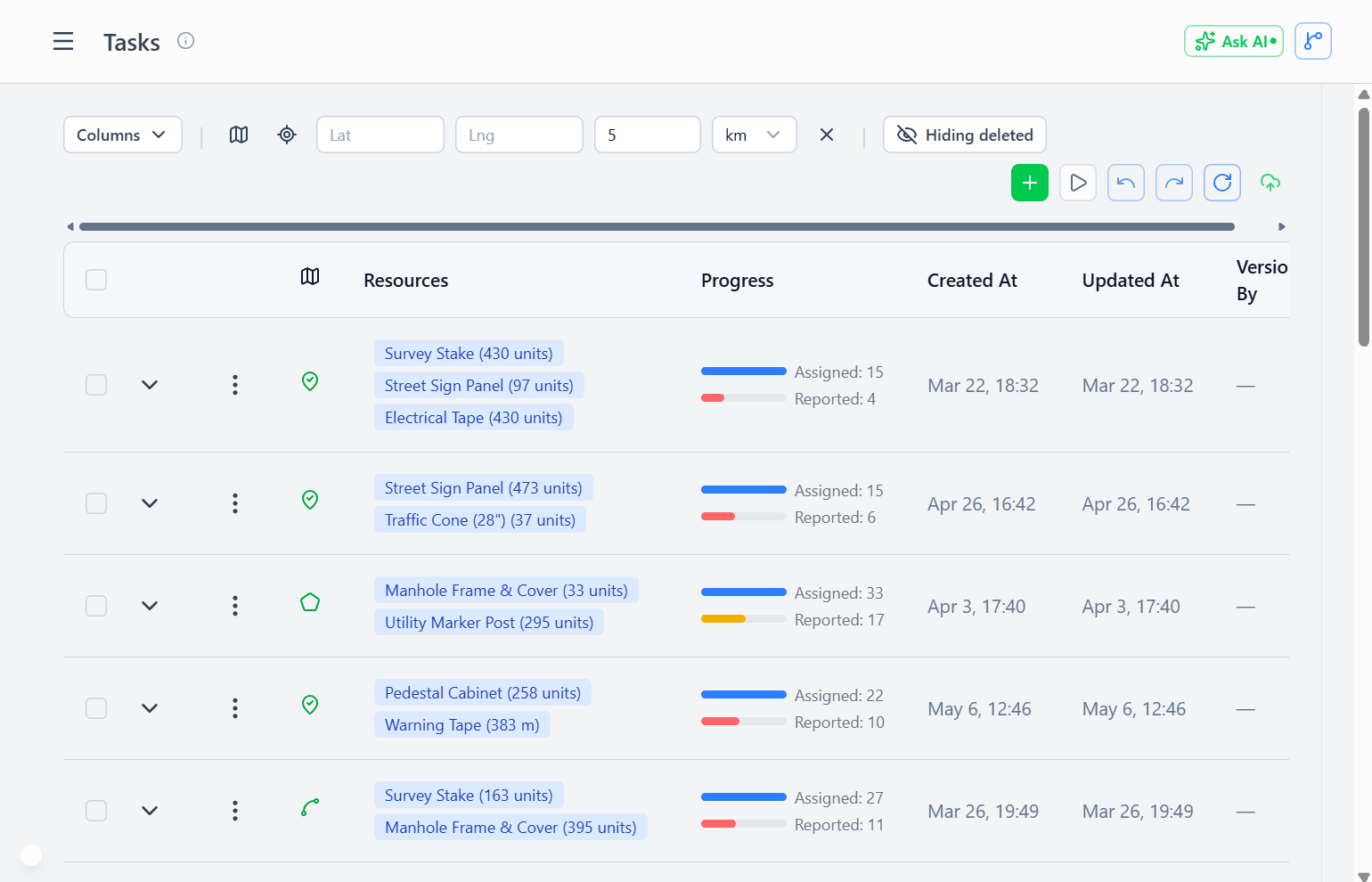 Jobs page showing planned work with progress tracking and multi-resource requirements
Basic Fields:
- Name — Descriptive job name
- Description — Detailed work instructions
- Geometry — Point, line, or polygon showing the work location
- Group — Free-text grouping within a project (e.g. "Phase 1", "Electrical")
- Resources — Array of required materials and equipment (multi-resource support, optional)
Resource Requirements: Each resource entry includes:
resource— Resource definition referencevolume— Quantity requireduom— Unit of measureassignedTo— Person responsible for picking up this specific resource line (optional — see Per-Resource Assignment)
Example:
Job: "Install network junction box at Building 42"
Geometry: Point (lat: 40.7128, lng: -74.0060)
Resources: [
  { resource: "Junction Box",    volume: 1,  uom: "units" },
  { resource: "Cat6 Cable",      volume: 15, uom: "meters" },
  { resource: "Mounting Screws", volume: 8,  uom: "units" }
]
The work of installing — splicing, mounting, terminating — is recorded on the work order as its activity line, not as a resource here.
Multi-Resource Jobs
Prior system: one resource per job
- Problem: complex work creates excessive map markers
- Example: 100 installations × 4 resources = 400 map points
Current system: multiple resources per job
- Single map marker represents the complete work package
- Same example: 100 map points (one per installation)
- Cleaner map, easier spatial planning
Per-Resource Assignment
Each resource line on a job can be assigned to a specific person. This lets planners designate who is responsible for picking up each material — at the line level, not just at the work-order level.
How assignment works:
- In the job detail, each resource row has an Assigned To column
- The column appears automatically when any row in the job carries an assignment; it stays hidden when no assignments are set
- Assigning someone to a resource line does not reserve inventory — it records who is expected to pick up and deliver that item
- Actual pickup state (who picked up, how much, when) is tracked through the transaction ledger, not on the job itself
Why track at the resource level?
A single job can have many resource lines, and those lines may be spread across multiple work orders and crews. Per-resource assignment fills the gap: a planner can say "Alice fetches the 50 m of conduit for this job, Bob handles the junction boxes." Each person gets a scoped view of exactly what they need to collect — no ambiguity about who is responsible for which item.
Filtering by your resource assignments:
The Work Orders page has a My Resource Assignments filter that shows work orders whose linked job has a resource line assigned to you. Workers can use this to go straight to their specific material pickups without scanning the whole job list.
Send Assignments notification:
Once resource assignments are set, the Send Assignments action on the jobs page dispatches notifications to all assignees. Each person receives a single combined message covering their work orders (name, due date, link) plus one QR code per assigned resource line. The QR code is the pickup authorization — the worker scans it at the warehouse to collect their specific item. Pickup is recorded as a transaction automatically on scan.
The Send Assignments action is available both as a per-row action on individual jobs and as a bulk operation when multiple jobs are selected in the table.
Jobs Are Versioned
Unlike work orders and reports, jobs use the version/commit workflow:
Why Versioned:
- Admins design work areas offline (subway tunnels, remote sites)
- Spatial conflict detection needed (overlapping geography)
- Batch operations common (redesign entire campaign)
- Rollback valuable (undo entire planning change)
Workflow:
- Create a version (draft mode)
- Add/edit jobs in the draft
- Spatial validation (check for overlaps)
- Commit version → jobs become "official"
- Workers see committed jobs in assignments
Offline Collaboration: Multiple admins can create separate versions:
- Admin A: Plan north region jobs
- Admin B: Plan south region jobs
- Both work offline, commit later
- Conflict resolution if geographies overlap
Job Geometry Types
Point Jobs
Single location work (equipment installation, inspection).
Geometry: { type: "Point", coordinates: [lng, lat] }
Line Jobs
Linear work (cable runs, pipeline installation).
Geometry: { type: "LineString", coordinates: [[lng1,lat1], [lng2,lat2], ...] }
Polygon Jobs
Area-based work (coverage zones, service areas).
Geometry: { type: "Polygon", coordinates: [[[lng1,lat1], ...]] }
Proximity Filtering
Find jobs near specific locations:
- Open the Jobs page
- Click Filter Nearby
- Drag the map marker to a location
- Set distance (e.g., 5 km)
- Table shows only jobs within that radius
Row Action: click "Filter Nearby" on a job row → auto-sets proximity to that job's location.
Job Usage in Work Orders
Each work order links to one job — the specific job the worker is being assigned to execute. Work orders cannot span multiple jobs; if work crosses job boundaries, create a work order per job or use ad-hoc standalone work orders.
A job can be referenced by multiple work orders — useful when splitting a large job across several crews or when work is phased over multiple days.
Example:
Job: "Run cable on floor 3"
  Resources: 200m cable

Work Order A (Morning crew):
  Job: "Run cable on floor 3"
  Resource Targets: 100m cable
  Activity: Pull fibre — 100m

Work Order B (Afternoon crew):
  Job: "Run cable on floor 3"
  Resource Targets: 100m cable
  Activity: Pull fibre — 100m
Both work orders reference the same job; reports from both roll into the job's progress calculation.
Job Progress Tracking
Calculation: Progress = Average completion across all resource lines
Example:
Job with 2 resources:
  - Cat6 Cable: 10m required, 5m completed = 50%
  - Screws: 8 required, 8 completed = 100%

Overall progress = (50% + 100%) / 2 = 75%
Visual Indicators:
- Progress bar: Green ≥ 100%, Yellow ≥ 50%, Red < 50%
Creating Jobs
Access Required: jobsCreate admin right
Workflow:
- Navigate to Fulfillment → Jobs
- Create a new version (or edit an existing draft)
- Click Add Job
- Fill basic info (name, description)
- Click the map to set geometry
- Add resource lines if the work consumes materials (optional, can add multiple)
- Set per-resource assignments if needed
- Save the job in draft
- Commit the version when planning is complete
Best Practices:
- Group related materials in a single job (reduces map clutter)
- Use consistent naming (e.g., "Install — Junction Box — Building 42")
- Set realistic resource volumes (informs inventory planning)
- Capture the work on the work order's activity line, not as a pseudo-resource
Bulk Job Generation
Method 1: Import from GeoJSON
- Create a GeoJSON file with one feature per job
- Each feature carries properties: name, description, resources
- Import → creates all jobs in one version
Method 2: Generate from Map Selection
- Select existing features on the map
- Click Generate Jobs
- Choose a resource configuration
- One job created at each selected location
Method 3: Duplicate a Job
- Select a job with the correct resource configuration
- Click Duplicate
- Edit the geometry to the new location
Batch Print Jobs
A project may contain dozens or hundreds of jobs. Rather than printing each one from its detail page, use the project-level Print all jobs action:
- Open the parent project's detail page (
/fulfillment/projects/:id) - Click Print all jobs in the header
- The batch print view opens at
/fulfillment/jobs/batch/[ids] - Screen shows 10 jobs per page (paginated, CSS-driven — all records are in the DOM so printing emits everything)
- Print the page — each job is separated by a hard page break
Notes:
- Safety cap: the batch view is limited to 200 jobs per print run. If the project exceeds this, a banner warns you and jobs beyond 200 are truncated — split the print into smaller batches if needed.
- Each job renders with the same layout as its individual job page.
Job Validation
Before a version is committed, the system validates:
Spatial Conflicts:
- Overlapping polygons (two jobs covering the same area)
- Point jobs too close together (configurable threshold)
- Line jobs crossing restricted zones
Resource Availability:
- Warning if required resources are not in inventory
- Doesn't block commit (jobs may be future-dated)
- Helps procurement planning
Geometry Validity:
- Points must have valid coordinates
- Lines must have at least 2 points
- Polygons must close (first point = last point)
Job → Work Order Lifecycle
Typical Flow:
- Planning — Admin creates jobs in a draft version
- Commit — Version committed, jobs become official
- Work Order — A work order is created, linking to this job, declaring its activity, and assigning it to a worker
- Execution — Worker executes the job, possibly over multiple work orders
- Reporting — Worker submits a report referencing this job
- Progress — Job progress updates based on all reports referencing it
- Completion — When all resources reach 100%, the job is effectively complete
- Graduation — If the completing work order has a Graduates To layer set, the job's geometry is placed or moved on the map (see Job Graduation below)
Job Reuse: Jobs can be referenced by multiple work orders:
- Split large jobs across multiple crews
- Partial completion by one worker, finished by another
- Progress aggregated across all reports
Job Graduation
Job graduation is how completed field work becomes part of the shared GIS dataset. When a work order that links to a job is completed, it can automatically place or advance the job's geometry on the map.
Setting Up Graduation
In the work order create or edit form, set the Graduates To field to the target layer. When that work order is marked completed, the graduation hook fires:
- No existing map feature → a new feature is created in the target layer, using the job's geometry and properties. A
sourceJobIdlink is stamped on the feature for traceability. - Existing map feature → the feature is moved to the target layer. The feature retains the same ID — nothing is duplicated.
The job itself is never deleted or archived. It remains as the permanent planning and work record.
Multi-Stage Graduation
A job can graduate through multiple layers as successive work orders complete. Example for a fibre network installation:
| Work Order | Target Layer | Stage |
|---|---|---|
| Survey | planned-routes | Route confirmed on map |
| Installation | installed-routes | Cable physically in place |
| Acceptance | accepted-routes | Sign-off complete |
Each completion just re-points which layer shows the job's geometry — no re-linking of the job itself is needed.
Graduation Log
The job detail view → Location tab shows a Graduation Log: a timestamped timeline of every layer move, including which work order triggered each transition. Use this to audit the lifecycle of a field installation.
Viewing Job Details
Job Detail Page Shows:
- Basic information and geometry
- Resource requirements list with per-resource assignment
- Progress bar and percentage
- Work orders referencing this job (with their activity lines)
- Reports that have recorded work against this job
- Graduation log (Location tab)